> For the complete documentation index, see [llms.txt](https://apps.embed-in.com/embed-canva-for-monday.com/llms.txt). Markdown versions of documentation pages are available by appending `.md` to page URLs; this page is available as [Markdown](https://apps.embed-in.com/embed-canva-for-monday.com/embed-canva-in-dashboard.md).
# Embed Canva in Dashboard
## Step 1: Open Your Dashboard
1. **Navigate to the dashboard** where you want to embed the Canva file.
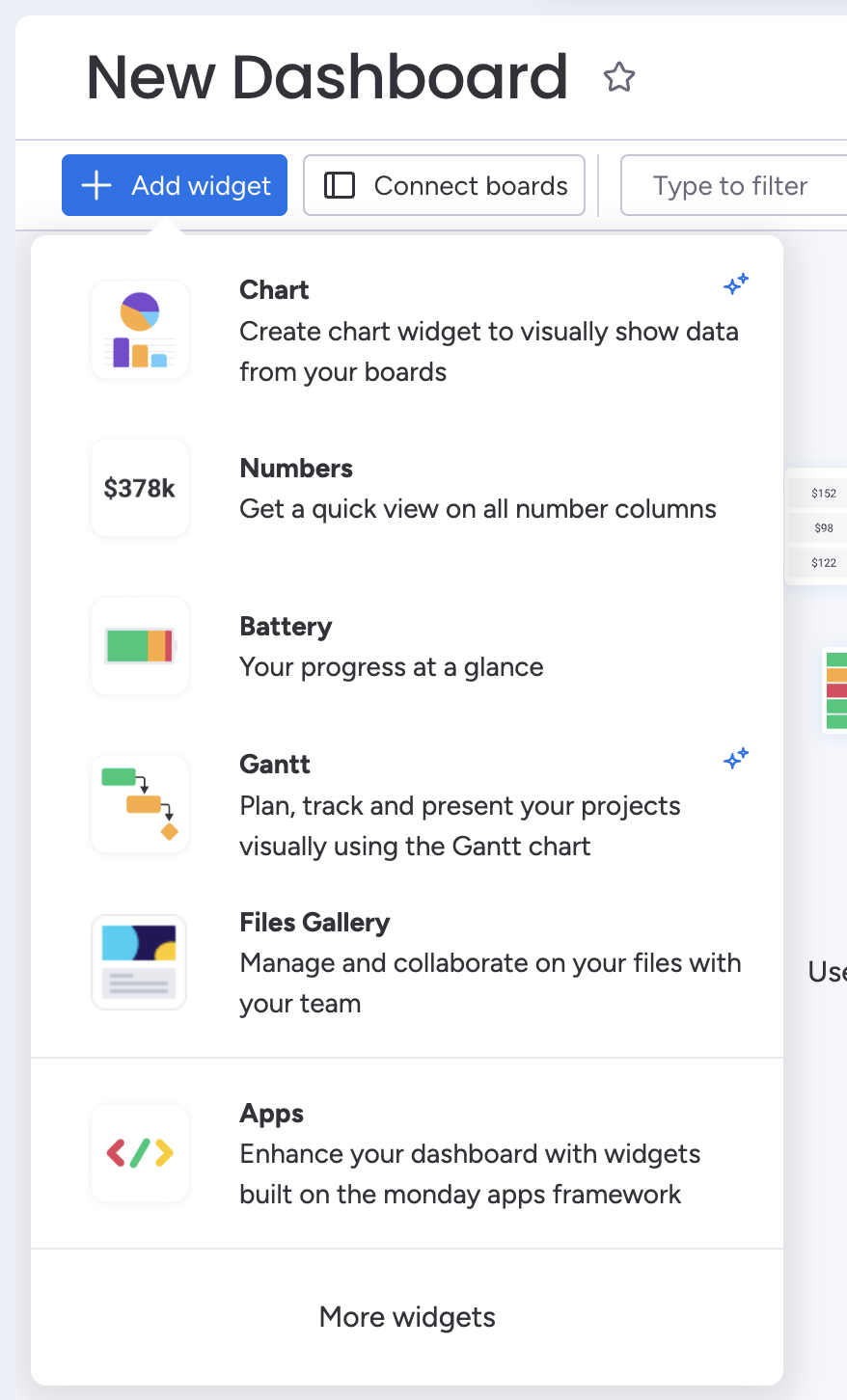
2. At the left and top of the screen, click on the **"Add widget"** button (or the plus **(+)** icon next to the existing view tabs).
## Step 2: Choose the App to Embed
1. In the dropdown menu, select **"Apps"**.
2. **The monday.com Widgets Center** will open, showcasing various views.
3. Find **Embed Canva in Dashboard** in installed Apps and click on **Add widget.**
## Step 4: Open the App on Your Dashboard
1. The embedder will show up, displaying instructions on how to retrieve the URL of your document.
## **Step 5: Obtain the URL of Your Canva file**
1. Open a new browser tab [canva.com](https://canva.com)
2. Select the Canva file you would like to embed
Copy the link to the Canva file:
1. Click the *Share* button in top right corner and find and click on *Embed*(May be in See all)
2. Click on *Copy* in Smart embed Link
## **Step 6: Insert the URL into monday.com**
1. Return to your monday.com item where the **Embed Canva in Dashboard** view is open.
2. On the right side, click on the **settings icon** (a gear symbol).
3. In the settings panel, locate the field labeled **"Canva URL"**.
4. **Paste the copied Canva URL** into this field.
1. Your Canva file or dashboard should now display within the item view.
2. **Verify the display** to ensure all elements are loading correctly and are interactive.